When encountering an ApplicationException, what occurs if the developer chooses InvalidOperationException as the exception handler within the Catches section of the Try Catch activity?
Correct Answer: B
Explanation The Try Catch activity is used to handle errors and exceptions that may occur during the execution of a workflow1. It has three sections: Try, Catches, and Finally1. The Try section contains the activities that may throw an exception or an error. If an exception or an error occurs, the execution of the Try section is stopped and the control is passed to the Catches section1. The Catches section contains one or more exception handlers that specify what type of exception or error to catch and what actions to perform when it is caught. The exception handlers are executed in order, from top to bottom, until a matching exception or error is found. If no matching exception or error is found, the execution of the workflow is stopped and a runtime error is thrown1. The Finally section contains the activities that are always executed at the end of the Try Catch activity, regardless of whether an exception or error occurred or not. The Finally section is used to perform cleanup actions, such as closing applications, releasing resources, or logging messages1. In your case, you have configured the properties for the Try Catch activity as follows: The Try section contains a Throw activity with an ApplicationException. The Catches section contains an InvalidOperationException with a Message Box activity and a Log Message activity. The Finally section is empty. This means that the Try Catch activity will throw an ApplicationException in the Try section and look for a matching exception handler in the Catches section. However, since you have chosen InvalidOperationException as the exception handler, which does not match the ApplicationException, the execution of the workflow will be stopped and a runtime error will occur. The Finally section will not be executed. Therefore, option B is correct. References: Try Catch - UiPath Documentation Portal.
Question 22
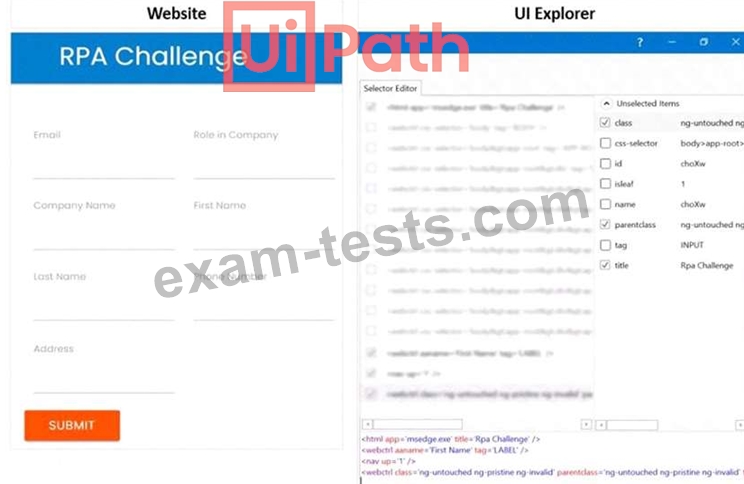
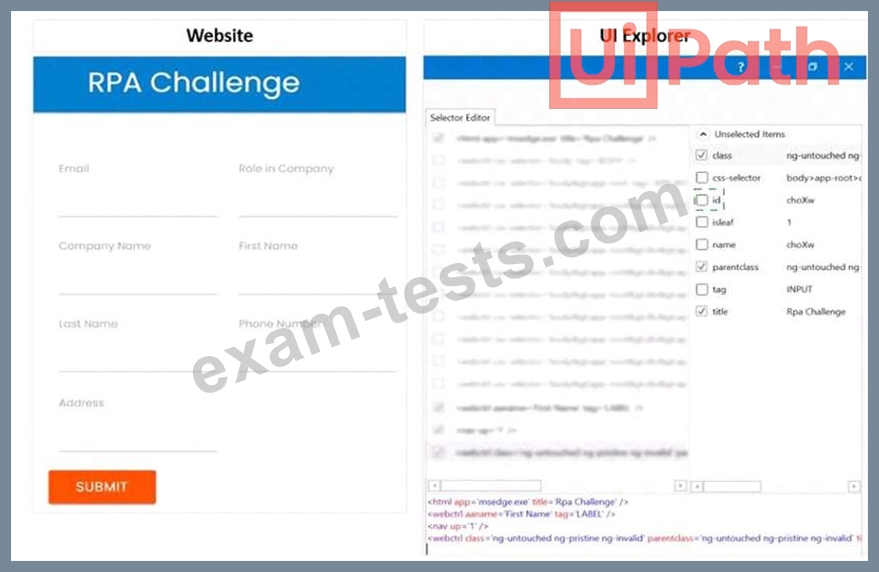
A developer is using a Type into activity to enter details into a web form The developer notices that the selector for the text field is unreliable. The selector that is shown in the exhibit currently targets both a text label and a text field at runtime Only one additional Property needs to be clicked to ensure the selector targets only the First Name text field at runtime. Instructions: Click the additional Property checkbox in the following Ul Explorer "Unselected Items" column that should be used for the First Name text field.
Correct Answer:
Explanation To ensure the selector targets only the First Name text field at runtime, you need to click the additional Property checkbox for ID in the UI Explorer Unselected Items column. This will add the ID attribute to the selector, which is a unique identifier for the text field element. The ID attribute has the value "firstname" for the First Name text field, as shown in the image. This will make the selector more reliable and specific, and avoid targeting the text label or other elements with the same class or tag. https://docs.uipath.com/de/studio/standalone/2021.10/user-guide/uipath-explorer
Question 23
What are the primary functions of the UiPath Integration Service?
Correct Answer: A
Explanation UiPath Integration Service is a new feature that allows developers to create and manage integrations with various applications and systems using UI and API automation. It offers a library of connectors that simplify the authentication and connection process, as well as activities and events that enable data exchange and automation triggering. It also supports server-side triggers that can start automations based on events from other systems. (UiPath Automation Developer study guide) References: Introducing UiPath Integration Service UiPath Integration Service
Question 24
What are the three main components of UiPath Integration Service?
Correct Answer: C
Explanation UiPath Integration Service is a feature that enables you to integrate UI and API automation in a unified way. The three main components of UiPath Integration Service are: Connectors: These are pre-built or custom components that provide access to various applications or systems through their APIs. You can use connectors to perform actions or retrieve data from different sources, such as Salesforce, Slack, Google Sheets, etc. (UiPath Integration Service documentation1) Connections: These are configurations that store the authentication and connection details for each connector. You can create and manage connections in the UiPath Automation Cloud and share them across different folders and processes. (UiPath Integration Service documentation2) Triggers: These are rules that define when and how to start a process in Orchestrator based on events from connectors. You can configure triggers to react to data changes, insertions, deletions, or custom events in the connected applications or systems. (UiPath Integration Service documentation3) References: 1: Integration Service - Connectors - UiPath Documentation Portal. 2: Integration Service - Connections - UiPath Documentation Portal. 3: Integration Service - Triggers - UiPath Documentation Portal.
Question 25
What is the purpose of credential stores in UiPath Orchestrator?
Correct Answer: C
Explanation Credential stores in UiPath Orchestrator are used to securely store sensitive information like Robot credentials and Credential Assets, which are essential for executing automated processes that require login details or other secure data. Orchestrator supports multiple credential stores at the tenant level and provides built-in support for secure stores such as CyberArk and Azure Key Vault. It also allows for the development of plugins for other secure stores if needed. (Orchestrator - Credential Stores - UiPath Academy) References: Orchestrator - Credential Stores - UiPath Documentation Portal Credential Stores - UiPath Orchestrator