
- Home
- Adobe Certification
- AD0-E902 Exam
- Adobe.AD0-E902.v2025-11-20.q18 Practice Test

Question 1
A Fusion designer is unhappy with the high number of bundles passing through an instant Watch Events module that monitors Workfront project updates.
Which action reduces the number of bundles passing through the module?
Which action reduces the number of bundles passing through the module?
Correct Answer: C
* Understanding the Issue:
* TheWatch Eventsmodule is generating a high number of bundles because it monitors a broad range of project updates in Workfront, resulting in an overwhelming amount of data passing through the scenario.
* The goal is to reduce the number of bundles by narrowing the scope of monitored events.
* Why Option C is Correct:
* Switching to Watch Record:
* TheWatch Recordmodule allows users to monitor specific records (e.g., projects, tasks) with additional filtering options in thecriteriaorfilter box.
* By applying filters, the module can focus only on relevant updates, significantly reducing the number of bundles being processed.
* Example: Filtering for specific project statuses, update types, or assigned users ensures that only relevant changes are captured.
* Why the Other Options are Incorrect:
* Option A ("Reducing the maximum number of returned events on the trigger"):
* This limits the number of bundles processed per cycle but does not address the root cause, which is the broad monitoring scope of theWatch Eventsmodule.
* Option B ("Reducing the maximum number of cycles in scenario settings"):
* The number of cycles determines how many iterations the scenario performs in one run but does not reduce the number of bundles entering the scenario.
* Steps to Use the Watch Record Module:
* Replace theWatch Eventsmodule withWatch Record.
* Specify the record type to monitor (e.g., Project).
* Use the optional filter box to apply criteria, such as specific project fields, statuses, or other conditions.
* Activate the scenario to test the refined data flow.
References and Supporting Documentation:
* Adobe Workfront Fusion: Watch Record Module
* Workfront Community: Managing High Bundle Volumes in Fusion
* TheWatch Eventsmodule is generating a high number of bundles because it monitors a broad range of project updates in Workfront, resulting in an overwhelming amount of data passing through the scenario.
* The goal is to reduce the number of bundles by narrowing the scope of monitored events.
* Why Option C is Correct:
* Switching to Watch Record:
* TheWatch Recordmodule allows users to monitor specific records (e.g., projects, tasks) with additional filtering options in thecriteriaorfilter box.
* By applying filters, the module can focus only on relevant updates, significantly reducing the number of bundles being processed.
* Example: Filtering for specific project statuses, update types, or assigned users ensures that only relevant changes are captured.
* Why the Other Options are Incorrect:
* Option A ("Reducing the maximum number of returned events on the trigger"):
* This limits the number of bundles processed per cycle but does not address the root cause, which is the broad monitoring scope of theWatch Eventsmodule.
* Option B ("Reducing the maximum number of cycles in scenario settings"):
* The number of cycles determines how many iterations the scenario performs in one run but does not reduce the number of bundles entering the scenario.
* Steps to Use the Watch Record Module:
* Replace theWatch Eventsmodule withWatch Record.
* Specify the record type to monitor (e.g., Project).
* Use the optional filter box to apply criteria, such as specific project fields, statuses, or other conditions.
* Activate the scenario to test the refined data flow.
References and Supporting Documentation:
* Adobe Workfront Fusion: Watch Record Module
* Workfront Community: Managing High Bundle Volumes in Fusion
Question 2
Which statement about the differences between instant and polling triggers is true?
Correct Answer: B
* Understanding Instant and Polling Triggers:
* Instant Triggers:
* Rely on webhooks to receive real-time data from a third-party system.
* The external system sends a notification (webhook) to Fusion whenever an event occurs, triggering the scenario immediately.
* Polling Triggers:
* Regularly check (poll) the third-party system for new or updated records at scheduled intervals.
* These are slower because they involve repeated API requests.
* Why Option B is Correct:
* Speed and Efficiency:
* Instant triggers process data faster because they act immediately upon receiving a webhook. Polling triggers, on the other hand, may take time depending on the polling frequency and can result in unnecessary delays.
* Reduced Load on Systems:
* Instant triggers generate fewer API calls than polling triggers, which continuously check for new records even if no changes have occurred.
* Best Practice: Use instant triggers whenever supported by the third-party system to ensure faster and more efficient scenario execution.
* Why the Other Options are Incorrect:
* Option A ("Instant triggers store received webhooks in a queue"):
* Webhooks do not store data in a queue; they simply notify Fusion of events in real-time.
Polling triggers also do not store records but remember the last processed record.
* Option C ("A user must set up a webhook in Fusion"):
* Instant triggers require setting up webhooks in the external system, not in Fusion. Fusion provides the webhook endpoint, but the user must configure the source system to send data.
* Option D ("Only polling triggers can be set to run on a schedule"):
* This is incorrect because instant triggers do not rely on schedules; they operate in real-time.
Polling triggers, however, run on schedules and are used when instant triggers are unavailable.
References and Supporting Documentation:
* Adobe Workfront Fusion Triggers Documentation
* Workfront Community: Differences Between Instant and Polling Triggers Instant triggers are the preferred option when available, as they provide real-time data processing with greater speed and efficiency than polling triggers.
* Instant Triggers:
* Rely on webhooks to receive real-time data from a third-party system.
* The external system sends a notification (webhook) to Fusion whenever an event occurs, triggering the scenario immediately.
* Polling Triggers:
* Regularly check (poll) the third-party system for new or updated records at scheduled intervals.
* These are slower because they involve repeated API requests.
* Why Option B is Correct:
* Speed and Efficiency:
* Instant triggers process data faster because they act immediately upon receiving a webhook. Polling triggers, on the other hand, may take time depending on the polling frequency and can result in unnecessary delays.
* Reduced Load on Systems:
* Instant triggers generate fewer API calls than polling triggers, which continuously check for new records even if no changes have occurred.
* Best Practice: Use instant triggers whenever supported by the third-party system to ensure faster and more efficient scenario execution.
* Why the Other Options are Incorrect:
* Option A ("Instant triggers store received webhooks in a queue"):
* Webhooks do not store data in a queue; they simply notify Fusion of events in real-time.
Polling triggers also do not store records but remember the last processed record.
* Option C ("A user must set up a webhook in Fusion"):
* Instant triggers require setting up webhooks in the external system, not in Fusion. Fusion provides the webhook endpoint, but the user must configure the source system to send data.
* Option D ("Only polling triggers can be set to run on a schedule"):
* This is incorrect because instant triggers do not rely on schedules; they operate in real-time.
Polling triggers, however, run on schedules and are used when instant triggers are unavailable.
References and Supporting Documentation:
* Adobe Workfront Fusion Triggers Documentation
* Workfront Community: Differences Between Instant and Polling Triggers Instant triggers are the preferred option when available, as they provide real-time data processing with greater speed and efficiency than polling triggers.
Question 3
Given the array below, a user wants a comma-separated string of all stat names.
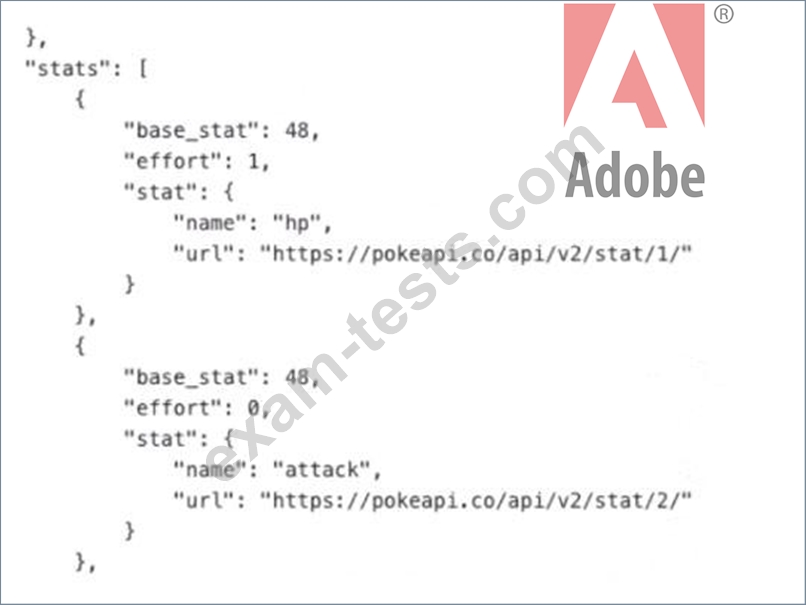
What is the correct expression?
What is the correct expression?
Correct Answer: B
* Understanding the Requirement:
* The input is an array containing objects, and the goal is to extract all the stat.name values into a comma-separated string.
* Example Input:
[
{
"base_stat": 48,
"effort": 1,
"stat": {
"name": "hp",
"url": "https://pokeapi.co/api/v2/stat/1/"
}
},
{
"base_stat": 48,
"effort": 0,
"stat": {
"name": "attack",
"url": "https://pokeapi.co/api/v2/stat/2/"
}
}
]
* Example Output:"hp, attack"
* Why Option B is Correct:
* The expressionjoin(map(2.data: stats[]; stats.stat.name); ", "):
* map: Iterates through each object in the array (2.data: stats[]) and extracts the stat.name field.
* join: Combines the extracted values into a single string, separated by a comma and space (", ").
* Breaking it down:
* map(2.data: stats[]; stats.stat.name) # Creates an array of names: ["hp", "attack"].
* join(...; ", ") # Converts the array into the string "hp, attack".
* Why the Other Options are Incorrect:
* Option A: join(2.data: stats[]; stat.name; ", ")
* This syntax is incorrect because it attempts to directly access stat.name within the join function without first mapping the values.
* Option C: join(map(2.data: stats[]; stat.name); ", ")
* The mapping references stat.name directly but does not account for the nested structure (stats.stat.name).
* Option D: join(flatten(2.data: stats[]); ", ")
* The flatten function is unnecessary here as the data is already structured. It would not properly extract the stat.name values.
* Steps to Implement in Workfront Fusion:
* Add aMapping/Transformation Module.
* Use the join(map(...)) function as described to transform the input array into a comma-separated string.
* Test the output to ensure it correctly generates the desired format.
* How This Solves the Problem:
* The map function ensures the proper extraction of nested stat.name values.
* The join function combines these values into the desired format efficiently.
References and Supporting Documentation:
* Adobe Workfront Fusion Functions Documentation
* Workfront Community: Using Map and Join Functions
The combination of map and join ensures that the stat names are extracted and formatted into a single comma-separated string, as required.
* The input is an array containing objects, and the goal is to extract all the stat.name values into a comma-separated string.
* Example Input:
[
{
"base_stat": 48,
"effort": 1,
"stat": {
"name": "hp",
"url": "https://pokeapi.co/api/v2/stat/1/"
}
},
{
"base_stat": 48,
"effort": 0,
"stat": {
"name": "attack",
"url": "https://pokeapi.co/api/v2/stat/2/"
}
}
]
* Example Output:"hp, attack"
* Why Option B is Correct:
* The expressionjoin(map(2.data: stats[]; stats.stat.name); ", "):
* map: Iterates through each object in the array (2.data: stats[]) and extracts the stat.name field.
* join: Combines the extracted values into a single string, separated by a comma and space (", ").
* Breaking it down:
* map(2.data: stats[]; stats.stat.name) # Creates an array of names: ["hp", "attack"].
* join(...; ", ") # Converts the array into the string "hp, attack".
* Why the Other Options are Incorrect:
* Option A: join(2.data: stats[]; stat.name; ", ")
* This syntax is incorrect because it attempts to directly access stat.name within the join function without first mapping the values.
* Option C: join(map(2.data: stats[]; stat.name); ", ")
* The mapping references stat.name directly but does not account for the nested structure (stats.stat.name).
* Option D: join(flatten(2.data: stats[]); ", ")
* The flatten function is unnecessary here as the data is already structured. It would not properly extract the stat.name values.
* Steps to Implement in Workfront Fusion:
* Add aMapping/Transformation Module.
* Use the join(map(...)) function as described to transform the input array into a comma-separated string.
* Test the output to ensure it correctly generates the desired format.
* How This Solves the Problem:
* The map function ensures the proper extraction of nested stat.name values.
* The join function combines these values into the desired format efficiently.
References and Supporting Documentation:
* Adobe Workfront Fusion Functions Documentation
* Workfront Community: Using Map and Join Functions
The combination of map and join ensures that the stat names are extracted and formatted into a single comma-separated string, as required.
Question 4
A query returns a partial list of possible values.
Which flow control module should be used to ensure all the possible results are queried?
Which flow control module should be used to ensure all the possible results are queried?
Correct Answer: B
* Understanding the Requirement:
* The query returns only a partial list of possible values.
* The task is to ensure that all results are processed by iterating through multiple queries or pages of data.
* Why Option B ("Repeater") is Correct:
* TheRepeatermodule is designed to repeat an operation a specified number of times or until a condition is met.
* It is commonly used for querying paginated data or when a system limits the number of records returned in a single request.
* In this case, the Repeater ensures all possible values are queried by making additional requests to retrieve subsequent pages or results.
* Why the Other Options are Incorrect:
* Option A ("Aggregator"):
* The Aggregator combines multiple data bundles into a single output. It does not handle iterative queries or pagination.
* Option C ("Iterator"):
* The Iterator splits an array into individual items for processing. It does not handle querying for additional data or looping through requests.
* Option D ("Router"):
* The Router splits the flow of a scenario into multiple paths based on conditions. It is unrelated to iterative querying.
* Steps to Configure the Repeater:
* Add theRepeatermodule to your scenario.
* Configure the number of repetitions or the condition to continue querying (e.g., based on the presence of additional data).
* Link the Repeater to the module responsible for retrieving the data, ensuring it processes all available results.
* How This Solves the Problem:
* The Repeater module ensures that all possible results are queried by iteratively sending requests until no more data is available.
References and Supporting Documentation:
* Adobe Workfront Fusion: Repeater Module Documentation
* Workfront Community: Using Flow Control Modules
* The query returns only a partial list of possible values.
* The task is to ensure that all results are processed by iterating through multiple queries or pages of data.
* Why Option B ("Repeater") is Correct:
* TheRepeatermodule is designed to repeat an operation a specified number of times or until a condition is met.
* It is commonly used for querying paginated data or when a system limits the number of records returned in a single request.
* In this case, the Repeater ensures all possible values are queried by making additional requests to retrieve subsequent pages or results.
* Why the Other Options are Incorrect:
* Option A ("Aggregator"):
* The Aggregator combines multiple data bundles into a single output. It does not handle iterative queries or pagination.
* Option C ("Iterator"):
* The Iterator splits an array into individual items for processing. It does not handle querying for additional data or looping through requests.
* Option D ("Router"):
* The Router splits the flow of a scenario into multiple paths based on conditions. It is unrelated to iterative querying.
* Steps to Configure the Repeater:
* Add theRepeatermodule to your scenario.
* Configure the number of repetitions or the condition to continue querying (e.g., based on the presence of additional data).
* Link the Repeater to the module responsible for retrieving the data, ensuring it processes all available results.
* How This Solves the Problem:
* The Repeater module ensures that all possible results are queried by iteratively sending requests until no more data is available.
References and Supporting Documentation:
* Adobe Workfront Fusion: Repeater Module Documentation
* Workfront Community: Using Flow Control Modules
Question 5
A Fusion user is trying to get a Google Slide presentation to connect to projects in Workfront. Each time the user runs the scenario, this error message appears:

What action should the user take to resolve the error message?
What action should the user take to resolve the error message?
Correct Answer: B
Step by Step Comprehensive Detailed Explanation:
* Understanding the Error:
* The error message [403] The caller does not have permission is aGoogle API permission error.
* It typically indicates that the user or application does not have the required access rights to perform the requested action on the Google Slide presentation.
* Option Analysis:
* A. Reauthorize their Google connection:
* This step might be necessary if the user's credentials or token have expired, but this is not the primary issue here since the error specifically states apermission problem.
* B. Update Google sharing permissions for the document:
* Correct. The error suggests that the Google Slide document has not been shared with the user or service account being used in Fusion. Updating the sharing settings to grant proper permissions (e.g., "Editor" or "Viewer" access) will resolve the issue.
* C. Contact Workfront Support to troubleshoot the root cause:
* While Workfront Support can help with Fusion-related issues, this error originates from Google and is unrelated to Workfront's systems.
* D. Search the Google status site to determine the cause:
* The Google status site is useful for identifying system-wide outages, but this is a user- specific permission issue, not a Google platform-wide problem.
* Steps to Resolve:
* Open the Google Slide presentation.
* Update the sharing permissions:
* Grant access to the Google account or service account being used in Fusion.
* Ensure the account has at leastEditoror appropriate access rights.
* Save the changes and rerun the Fusion scenario.
* Why Updating Permissions is Best:
* This action directly addresses the root cause of the error, which is inadequate access rights.
* Once permissions are updated, Fusion will be able to connect to and manipulate the Google Slide document as intended.
References:The [403] The caller does not have permission error is documented in Google API troubleshooting guides, which recommend verifying and updating document sharing settings for resolving access issues.
* Understanding the Error:
* The error message [403] The caller does not have permission is aGoogle API permission error.
* It typically indicates that the user or application does not have the required access rights to perform the requested action on the Google Slide presentation.
* Option Analysis:
* A. Reauthorize their Google connection:
* This step might be necessary if the user's credentials or token have expired, but this is not the primary issue here since the error specifically states apermission problem.
* B. Update Google sharing permissions for the document:
* Correct. The error suggests that the Google Slide document has not been shared with the user or service account being used in Fusion. Updating the sharing settings to grant proper permissions (e.g., "Editor" or "Viewer" access) will resolve the issue.
* C. Contact Workfront Support to troubleshoot the root cause:
* While Workfront Support can help with Fusion-related issues, this error originates from Google and is unrelated to Workfront's systems.
* D. Search the Google status site to determine the cause:
* The Google status site is useful for identifying system-wide outages, but this is a user- specific permission issue, not a Google platform-wide problem.
* Steps to Resolve:
* Open the Google Slide presentation.
* Update the sharing permissions:
* Grant access to the Google account or service account being used in Fusion.
* Ensure the account has at leastEditoror appropriate access rights.
* Save the changes and rerun the Fusion scenario.
* Why Updating Permissions is Best:
* This action directly addresses the root cause of the error, which is inadequate access rights.
* Once permissions are updated, Fusion will be able to connect to and manipulate the Google Slide document as intended.
References:The [403] The caller does not have permission error is documented in Google API troubleshooting guides, which recommend verifying and updating document sharing settings for resolving access issues.
- Latest Upload
- 427PaloAltoNetworks.NGFW-Engineer.v2026-05-01.q43
- 538Nokia.4A0-113.v2026-05-01.q69
- 596EC-COUNCIL.312-49v11.v2026-04-30.q214
- 549Microsoft.MB-820.v2026-04-30.q101
- 421Salesforce.MC-202.v2026-04-30.q57
- 461BICSI.INSTC_V8.v2026-04-29.q53
- 572NMLS.MLO.v2026-04-28.q82
- 395NCARB.Project-Management.v2026-04-28.q27
- 743EMC.D-AV-DY-23.v2026-04-27.q184
- 1947ServiceNow.CSA.v2026-04-27.q483
[×]
Download PDF File
Enter your email address to download Adobe.AD0-E902.v2025-11-20.q18 Practice Test